
WhatsApp Guidelines for Students
WhatsApp groups are meant to be useful, interesting and help build a sense of community and peer support. We encourage students to participate positively if they wish. The NCA neither sends nor monitors messages on student WhatsApp groups. However, the College would appreciate it if students would note the following guidelines.
- The purpose of the platform is for:
- the student/group representative to post information or requests deemed appropriate for students, whatever that may be.
- members to ask questions or ask for clarification about issues or events that other students might be able to answer.
- Post messages that are:
- relevant for the whole group; and
- about College-related issues.
Before posting, ask if it might be better suited to a smaller group.
- Avoid:
- using the platform as a medium to air concerns or grievances regarding a member of staff or fellow student, or to give opinions on current affairs.
- posting in anger.
Think before posting and consider how the post may come across. We have a diverse College community and people identify and choose to live their lives in many ways. Please be respectful of this.
We would particularly emphasise the need for students to avoid sharing information relating to assignment requirements and rubrics, as we have found that inaccurate answers can result in students losing marks. If the answer to your query is not to be found in the module descriptor, the best way to obtain an accurate answer to an assignment-related query is to post a question on the module forum (read the existing questions/answers first to check that your question hasn’t already been asked).
Posting Etiquette
- If someone asks a question and you don’t know the answer, wait for someone who knows the answer to reply rather than post ‘don’t know’.
- Post your message in one single chunk of text rather than post every word or sentence in a new message.
- ‘Thank you’ messages are lovely but not required on a whole group chat. Consider sending a direct message to the person.
- Switch to private messages if you want to have a one-to-one conversation.
- Ask yourself - Is this relevant? Is this necessary? Is it true? Is it helpful? Is it kind? Is this a good time to post? i.e. not late at night or very early in the morning.
- You can always choose to leave a WhatsApp group, and no-one should make a judgement about your decision.
The NCA takes its safeguarding responsibilities seriously and will deal with any reported incidents appropriately. This includes abusive or personal comments about staff or students, defamatory or libellous comments, discriminatory comments, using social media to publicly challenge College policies or discuss issues about individual students, or threatening behaviour. If someone makes an inappropriate comment, please contact your student representative who will liaise with Student Services.
Managing WhatsApp chats
It is common for students to feel overwhelmed by WhatsApp chats, particularly at times when academic load is higher than usual such as exams or assessments.
If you feel overwhelmed, we encourage you to take some time out. This could be:
- Muting the chat for a time;
- Archiving the chat;
- Signing out of the chat for a time, or permanently if you wish.
Students who choose to mute or sign out of a WhatsApp chat should be supported by the rest of the group – for instance, at in-person teaching sessions, a short verbal summary of the chat to date could be given by other students.
You may also wish to produce a summary of the WhatsApp chat that gives you the gist of the conversation without the specifics. You can do this using an AI engine. In the following example, we have used ChatGPT. To summarise a WhatsApp chat, you will need to install WhatsApp Desktop on your laptop or device from this address: https://www.whatsapp.com/download.
To summarise a chat:
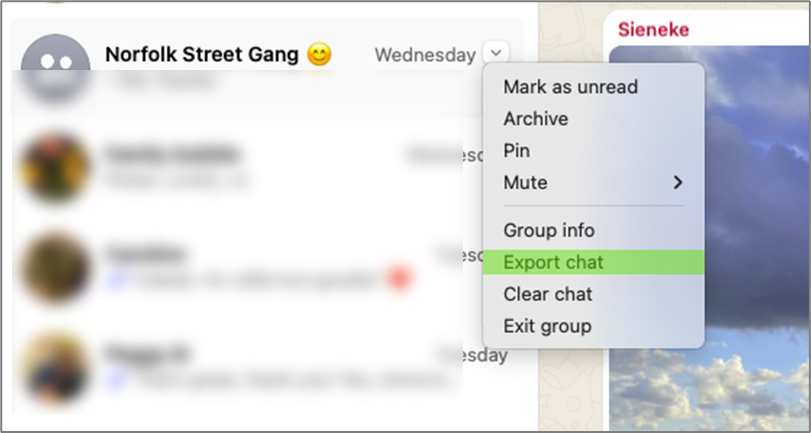
- In WhatsApp desktop, hover over the chat you want to summarise, and click the downward-facing arrow on the right.
- From the menu, choose Export Chat:
![WhatsApp screenshot 01]()
- WhatsApp will give you the option to export WITH or WITHOUT media (photos and files, etc). Choose “Without media”. The last year of the chat will be exported.
- This will export the chat as a zip file, usually to your Downloads folder. It will have the same name as the chat itself. Find the zip file and double-click on it to convert it to a .txt (text) file. It will be called _chat.txt.
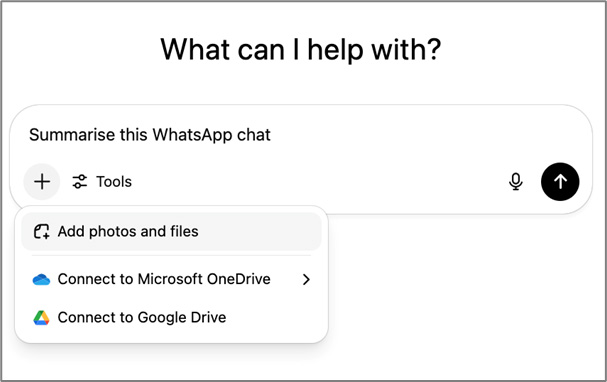
- In your browser, open up ChatGPT (or another AI engine) and prompt it:
Summarise this WhatsApp chat - Click the + button to upload your text file. From the menu, select “Add photos and files”, then navigate to the place where your chat file is stored and click Open:
![WhatsApp screenshot 01]()
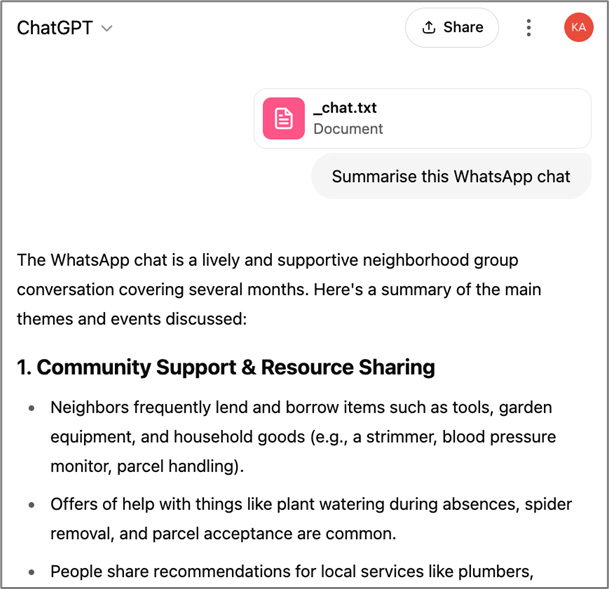
- The AI engine will produce a summary:
![WhatsApp screenshot 01]()
The export will cover an entire year before the date of the export (i.e., an export on May 1st 2025 will go back to May 1st 2024). You may want to edit the text file before uploading to ChatGPT so that you only summarise the section that’s most important to you. The _chat.txt file contains dates and times so you can delete the sections you don’t need.
Remember to check the accuracy of any important points with another member of your cohort.
Please be aware that NCA cannot support students with WhatsApp technical issues.